When you want a nice Lock Screen, you need to have the correct size iPhone screensaver. An incorrect size may result in unclear or stretched images, or in images being cut off in strange places.
The pixel dimensions of common iPhone phones are displayed in this guide. You will also learn how to prepare your image, set it as a wallpaper and how to prevent some common mistakes.
In what size should the iPhone Saver be?
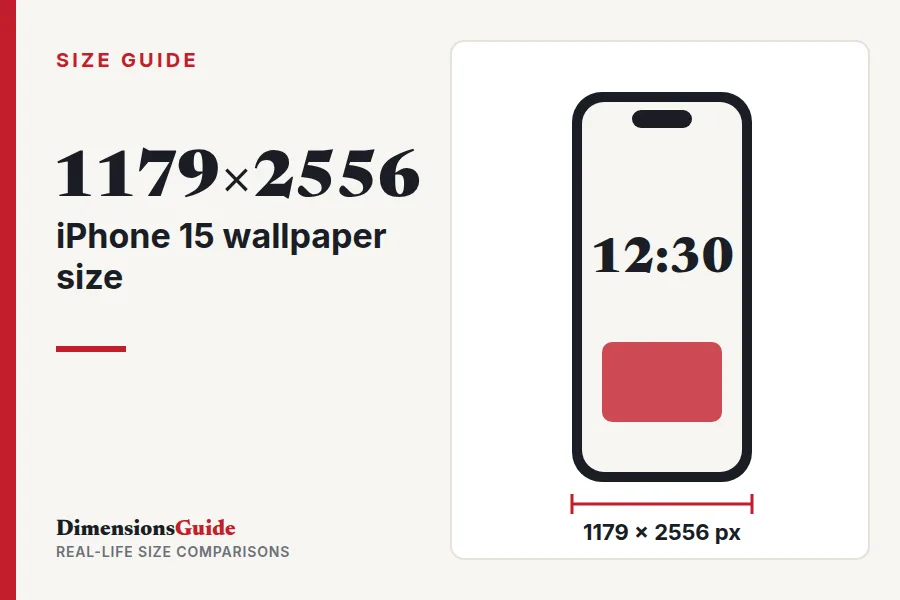
The ideal size of the screen savers for iPhone is the same resolution as the screen in pixels. For instance, the display size for the iPhone 15 is 1179 x 2556 pixels. The wallpaper is created at that size and will not stretch when installed on the screen.
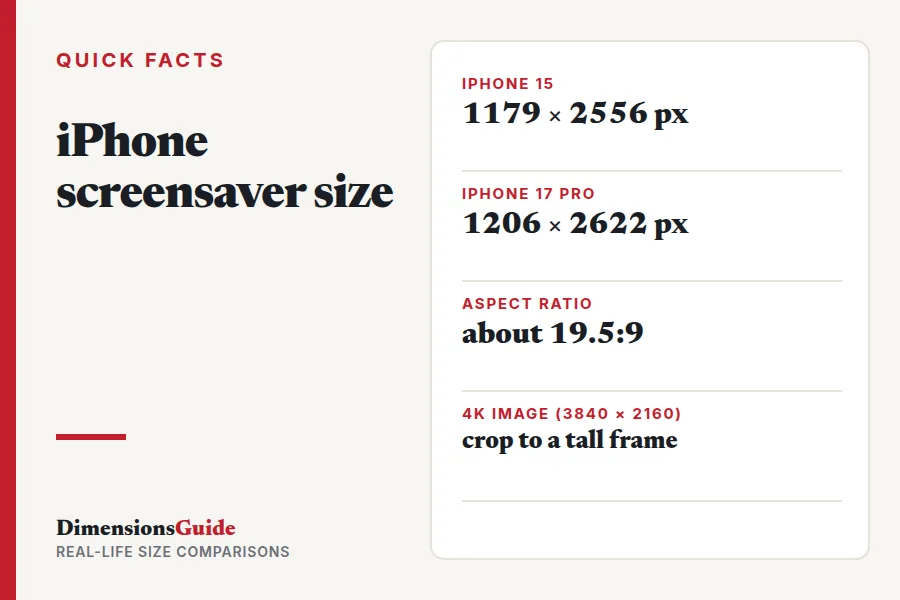
Apple doesn’t use the term “screensaver” for the iPhone. It’s set in its settings as Wallpaper and shows up on Lock Screen and Home Screen. However, many people look for iPhone screensaver size as they would like to have the right image size. For this guide both terms are synonymous.
The Correct iPhone Screensaver Size Matters
When you add a proper size screensaver to your iPhone, you enjoy some definite advantages: For more context, see 9to5Mac’s iPhone display list.
The image is more detailed: It looks the same as what is displayed on your screen.
Improved placement of faces, objects and text.
No stretching or black bars: Picture fills the screen without stretching or black bars.
Less cropping and resizing: You do not repeat this task.
If the image quality is poor, the image will appear soft, particularly on newer OLED displays that have a higher pixel density.
Determine Your iPhone Model
The fastest method to select the appropriate iPhone screensaver size is to know your model. Here are the following tips to follow: You may also like our guides on the smallest cell phone and the sizes of car GPS units.
Open Settings.
Tap General, and then About.
Look at Model Name.
Match the names with the chart above.
This will only take about a minute and you won’t have to guess.
Aspect Ratio and Safe Areas
But the size of the pixel is not the only factor. Modern iPhones (Face ID) are tall with a 19.5:9 aspect ratio. A large 16:9 desktop image will have to be heavily cropped to fit. Another useful comparison is the size of GPS navigators.
Ideally, use a portrait image (tall and narrow). This way, you do not lose out on the sides rather the full scene.
Take into consideration what’s on top of your picture. At the top of the Lock Screen is the time, date and widgets. At the bottom, there are buttons for the flashlight and camera. Placing your primary subject away from those elements is a good idea. There are lots of people who are able to make the dimensions right, but they neglect to set the location, and this still looks cluttered.
Best File Formats for iPhone Wallpapers
Any of the common image formats can be used for wallpaper. The top three most helpful are:
JPEG: Compact and popular. Good for photos.
PNG: Maintains sharp edges. Best for graphics, text and illustrations.
The standard format of photos taken with an iPhone. It maintains the quality at a smaller file size.
Prevent using images from social network applications. They tend to be compressed quite a lot and lose details. When possible, always begin from the original file.
Is Bigger Image Better?
It is OK to use a large image. It gets scaled down when displayed on iOS. A larger file will also allow you to pinch, zoom and move the picture when you set it.
Small picture is the actual issue. The image needs to be enlarged on the phone and appears soft/pixelated. Any extra large files have no visible advantage and take up space. The best option is to choose the exact size of the iPhone screensaver for your particular model or slightly larger.
For instance, a landscape photo that is 4K has a resolution of 3840 x 2160 pixels. It is up-pixelated, but it’s a shape that’s not suited for a phone. It will have to be cropped down to a tall frame then.
How to Set a Custom Screensaver on iPhone
After you have created your image, do the following on iOS 16 or later:
Tap Settings and then Wallpaper.
Tap Add New Wallpaper.
Click on Photos, and then pick the picture you’d like to use.
Drag the Image to move around the screen.
Click on Add, then on Set as Wallpaper Pair or Customize Home Screen.
Alternatively, hold down the Lock Screen and click the + button to add a new wallpaper. Look at the outcome before confirming.
Some helpful hints on Depth Effect and the Always On Display.Some suggestions on Depth Effect and the Always On Display.
The Depth Effect can also position your subject in front of the clock on iOS 16 and later. It is best suited with a clearly defined subject or some space at the top of the photo. It is not available on all images so try a couple.
There are some iPhones with an Always-On display. The Lock Screen wallpaper fades on those phones when the phone is idle. Simple, dark images work best when viewed in the dark mode.
Another new feature in iOS 17 is StandBy, a feature that will display when your phone charges on its side. It has its own option to choose its display from so it will not affect your wallpaper. The size of the iPhone screen saver is important to the Home Screen and Lock Screen, but it is not important to StandBy.
Common Mistakes to Avoid
Most wallpaper problems come from a few simple errors:
- Using a desktop image without cropping. The subject may be cut off or too small.
- Choosing a tiny or low-quality image. It will look blurry once enlarged.
- Placing the subject under the clock or widgets. Important details get hidden.
- Copying the iPhone screensaver size from a different model. Small differences can cause slight cropping.
- Skipping the preview. Always check the Lock Screen and Home Screen before you save.
Avoiding these mistakes keeps your wallpaper looking professional.
Final Thoughts
The right iPhone screensaver size is simple to find once you know your model. Match the pixel size, use a tall image, and keep your main subject away from the clock and buttons.
Start with a high-quality original. Choose JPEG, PNG, or HEIC, and preview the result before you save it. If you are unsure, pick an image slightly larger than your screen and adjust it with pinch and drag.
A few minutes of preparation gives you a sharper, cleaner wallpaper that you will enjoy every time you pick up your phone. Use the chart in this guide whenever you change your wallpaper, and your next iPhone screensaver size choice will be easy.
FAQs
What is the best iPhone screensaver size?
The best iPhone screensaver size is your model’s own screen resolution. For example, use 1179 x 2556 pixels for an iPhone 15, or 1206 x 2622 pixels for an iPhone 17 Pro. Check the chart above to find yours.
Is the iPhone screensaver size the same for all models?
No. Different models have different screen resolutions and slightly different shapes. A wallpaper made for one model may still work on another, but it can be cropped or slightly soft.
Can I use a 4K image as my wallpaper?
Yes. iOS will scale it to fit your screen. However, 4K images are usually wide, so you will need to crop them to a tall frame. Use the pinch and drag tools when you set the wallpaper.
Why does my wallpaper look blurry?
The usual causes are a low-resolution image, heavy compression, or zooming in too far. Start with a high-quality original that meets or exceeds your phone’s resolution.
Does the iPhone have a real screensaver?
Not in the traditional computer sense. Your Lock Screen wallpaper acts as the main visual, and the screen turns off after the Auto-Lock time you choose. StandBy and the Always-On display offer other ways to show information while the phone is idle.